Stop guessing and start validating. The MT4 Strategy Tester is a powerful, built-in tool designed to prove your strategy’s viability before you risk real capital. While best known for testing Expert Advisors (EAs), it is equally vital for visually reviewing indicator behavior and refining rule-based setups. Think of it as a time machine for your trading: this guide provides a scientific framework to test, optimize, and master your approach without spending a single dollar in the live market.
Key Takeaways
- Backtests Expert Advisors (EAs) and indicators using historical data.
- Assesses a strategy’s potential profitability and risk before live trading.
- Setup involves selecting the EA, symbol, timeframe, dates, and model quality.
- Analysis focuses on the Report tab (Profit Factor, Drawdown) and Equity Curve.
- Accurate results depend heavily on high-quality historical data (like tick data).
1. What Is the MT4 Strategy Tester?
The MT4 Strategy Tester is a powerful module built directly into the MetaTrader 4 trading platform. It functions as a sophisticated simulator, allowing traders to perform backtesting and optimization of their automated trading strategies, commonly known as Expert Advisors (EAs), or even custom indicators.
Its primary purpose is to test the historical performance of these strategies using past price data. This allows traders to see how an EA or specific swing setups to test in MT4 would have theoretically performed under specific market conditions without risking any real capital. According to the official MetaQuotes documentation (MetaTrader 4 Help Guide), the developer of MT4, this process is crucial for evaluating a strategy’s viability and refining its parameters.
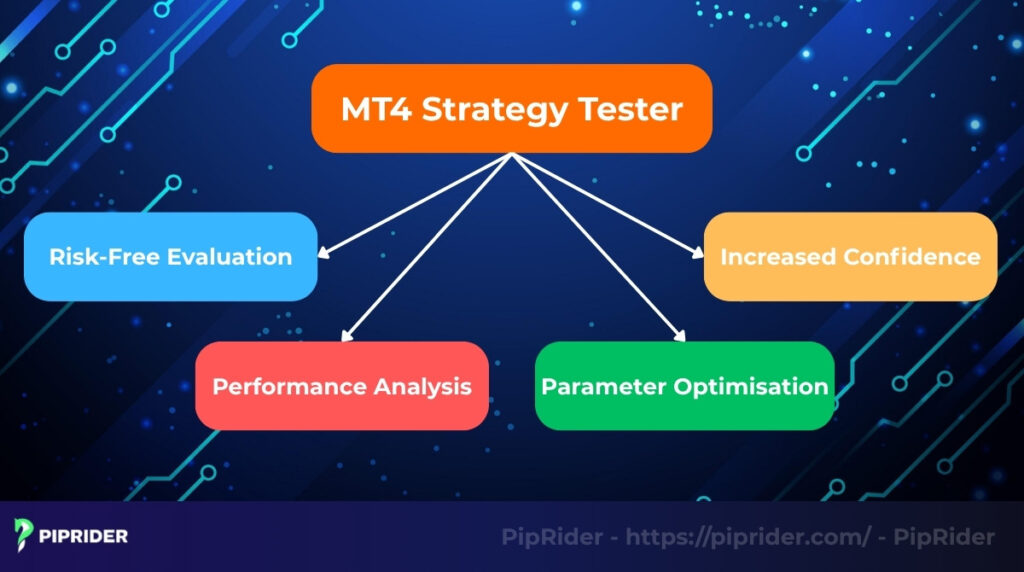
The key advantages of using the strategy tester include:
- Risk-Free Evaluation: Enables risk-free testing of any strategy on historical data without putting real money on the line.
- Performance Analysis: Objectively assess a strategy’s potential profitability, drawdown, win rate, and other critical metrics.
- Parameter Optimisation: Fine-tune the input variables of an EA to find the settings that yield the best historical performance through optimisation.
- Increased Confidence: A thoroughly backtested strategy provides greater confidence when deploying it in the live market, acting as a crucial confidence-building step.
2. Manual Backtesting vs. EA Testing in MT4
Many beginners open the MT4 Strategy Tester expecting to manually trade past chart data. However, understanding the platform’s primary design versus its workarounds is crucial to avoid frustration.
- Native Strength (Automated EA Testing): The core architecture of MT4 is explicitly built for Expert Advisors (EAs). It crunches years of historical data through coded algorithms to instantly generate objective, statistical reports.
- Manual Backtesting (The Workaround): The standard MT4 tester lacks a native “Buy/Sell” button for historical data. To test manual price action setups (like chart patterns or trendlines), you must run the tester in Visual Mode and install a third-party “Trade Simulator” or “Helper EA” to place simulated orders on the moving chart.
- Indicator Testing: You can easily attach custom indicators in Visual Mode to watch how they plot historically. However, to extract a full performance report (win rate, drawdown) based strictly on an indicator’s signals, wrapping that logic into a simple EA is the only direct method.
3. Setting Up the MT4 Strategy Tester
If you want to start immediately, here is the 5-step rapid setup checklist to get your first backtest running in under a minute. (We will explain the “Why” behind each setting in the sections below).
The 5-Step Quick Setup:
- Open the Tool: Press
Ctrl + R(or click the magnifying glass icon) and select “Expert Advisor” from the first dropdown. - Choose the Asset & Timeframe: Select your target Symbol (e.g., EURUSD) and the chart Period (e.g., H1).
- Set Data Quality: Choose Every tick for the Model and manually enter a fixed Spread value (e.g., 10). Never use “Current” on a weekend.
- Define the Test Window: Check the Use date box and input your historical start and end dates.
- Adjust EA Rules: Click Expert properties to configure your robot’s specific inputs (like Lot size or Moving Average periods), then hit Start.
3.1. Accessing the Strategy Tester
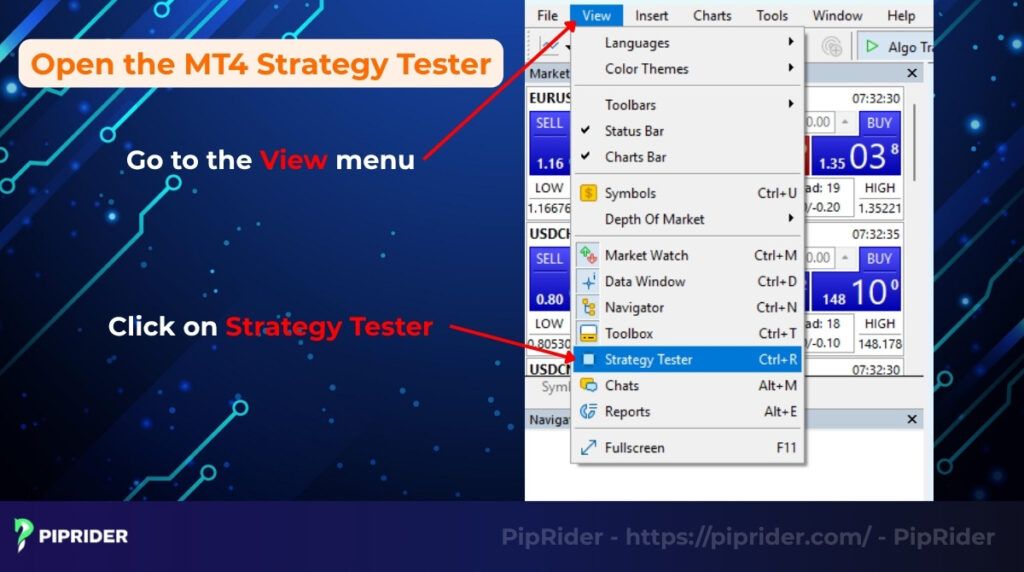
First, you need to open the Strategy Tester panel within your MT4 platform.
- Go to the View menu in the top toolbar.
- Click on Strategy Tester.
- Alternatively, use the keyboard shortcut Ctrl + R.
This will open the Strategy Tester window, usually docked at the bottom of your MT4 interface.
3.2. Selecting Your EA and Core Settings
Once the tester is open, you need to define the parameters of your experiment. Precision here is key; even a small misconfiguration can lead to “false positive” results that won’t hold up in live trading.
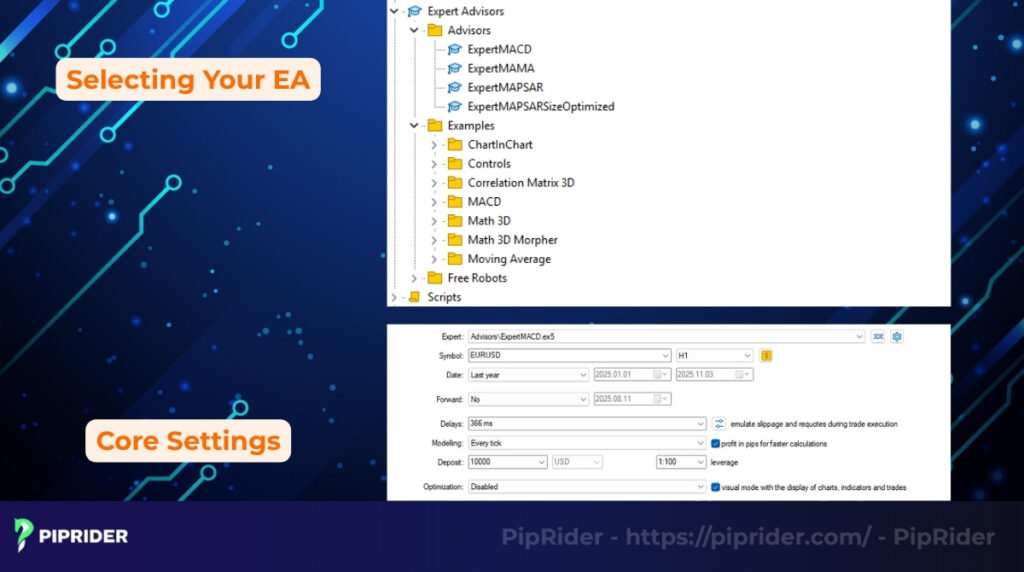
Configure these core components to begin:
- Expert Advisor: Select the specific EA file you want to analyze from the dropdown menu. Pro Tip: If your EA isn’t showing up, ensure the .ex4 or .mq4 file is placed correctly in your MT4 “Experts” folder and restart the platform.
- Symbol: Choose the specific currency pair or asset (e.g., EURUSD, Gold). Remember that spreads and volatility vary significantly between symbols.
- Period: Select your target chart timeframe (M15, H1, D1, etc.).
- Model: This is the most critical setting, as it determines the balance between data integrity and processing speed. Refer to the Model Selection Matrix below to choose the right mode for your strategy:
| Model Mode | Accuracy | Speed | Best Used For… |
|---|---|---|---|
| Every tick | Highest | Slowest | Precision testing for scalping, grid, or high-frequency EAs. |
| Control points | Medium | Moderate | Quick “rough” testing to see if a strategy has basic viability. |
| Open prices only | Lowest | Fastest | Expert Advisors that only execute trades at the exact start of a new bar. |
3.3. Configuring Backtest Parameters
Finally, define the specific conditions and trading scenarios for your simulation:
- Use date: Check this box to specify the historical period for your test. Set the From and To dates.
- Visual mode: Check this box if you want to watch the EA trade visually on a chart as the backtest runs. This is great for understanding how the EA behaves but significantly slows down the process. A slider adjusts the simulation speed.
- Spread: Set the spread (in points) that the tester will use. Choose “Current” to use the broker’s live spread, or select a fixed value to simulate specific conditions (e.g., average spread for the pair).
- Optimization: Leave this unchecked for a standard backtest.
- Expert properties: Click this button to adjust the specific input parameters of the selected EA (e.g., moving average periods, stop-loss values).
Quick Start: The “Safe Default” Setup for Beginners
| Parameter | Safe Default Setting | Why? (The Pro Reason) |
|---|---|---|
| Model | Every tick | Essential for the highest accuracy. Simulates intra-bar price movements. |
| Visual mode | Unchecked (Off) | Keeps the process fast. Only turn it on if you need to visually debug the EA’s entries. |
| Use date | Checked (On) | Allows you to specify a test period. |
| Test period | At least 1-2 years | Ensures the strategy is tested across multiple varying market conditions (trends, ranges). |
| Spread | Fixed value (e.g., 10 points) | Never use “Current” on a weekend, as widened weekend spreads will completely distort historical results. |
| Optimization | Unchecked (Off) | Focus on running a clean, single baseline test before trying to find the “perfect” parameters. |
4. Understanding the Strategy Tester Interface
The MT4 Strategy Tester organizes its functions across several key tabs. Navigating these correctly is essential for moving from a basic setup to a scientific analysis of your results.
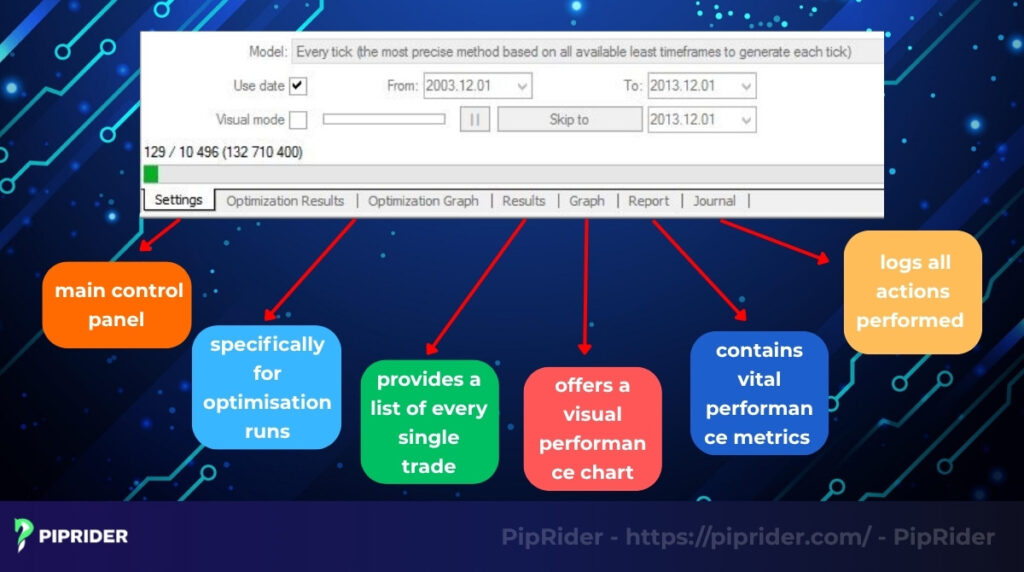
MT4 Strategy Tester: Tab Functions at a Glance
| Tab | What It Is Used For | Key Features to Note |
|---|---|---|
| Settings | The main control panel for your backtest. | Configure EA/Symbol/Period. Use “Expert properties” to adjust input parameters. |
| Results | A chronological log of every trade executed. | Shows entry/exit prices, volume, commissions, and swaps. |
| Graph | Visual plot of your account balance and equity. | Look for a steady upward slope; significant dips visually show drawdown. |
| Report | The “Scientist’s” view. A full statistical summary. | Contains the final verdict: Profit Factor, Win Rate, and Expected Payoff. |
| Journal | The technical log of the tester’s actions. | First place to check for execution errors or missing data warnings. |
| Optimization | Automated testing of multiple parameter sets. | Compares results to find the most robust settings for your EA. |
5. Analyzing Test Results
Running a backtest is just the first step; the real value comes from understanding the performance data and overall trading performance. The Report tab in the MT4 Strategy Tester provides a wealth of statistics. Let’s break down how to interpret the results to determine if your Expert Advisor (EA) shows promise.
5.1. Key Performance Metrics Explained
Focus on these core numbers in the Report tab to quickly assess your strategy’s historical behavior:
- Total Net Profit: Shows the overall profit or loss generated during the test period.
- Profit Factor: Calculated as Gross Profit / Gross Loss, it reveals dollars won per dollar lost. Aim for above 1.5 for a robust strategy; below 1.0 signifies a historical loss.
- Maximum Drawdown: Represents the largest percentage equity drop from a peak during the test. A crucial risk assessment metric; its acceptable level depends on individual risk tolerance.
- Total Trades & Win Rate (%): Indicate trade frequency and the percentage of profitable trades. A high win rate is less critical if the Profit Factor is strong (average wins >> average losses).
- Expected Payoff: Calculates the average profit or loss expected per average trade. For viability, the value must be positive and large enough to overcome real-world costs like slippage.
To evaluate your results like a pro, use the following benchmark table:
| Metric | Healthy Sign (Green Flag) | Warning Sign (Red Flag) |
|---|---|---|
| Profit Factor | > 1.5 | < 1.2 (Poor edge or excessive risk) |
| Max Drawdown | Manageable (< 15-20%) | Too deep relative to return potential. |
| Equity Curve | Smooth upward slope | Jagged, volatile, or vertical drops. |
| Expected Payoff | Clearly Positive | Negative or too small to cover fees. |
5.2. How to Determine Strategy Reliability
A profitable backtest doesn’t guarantee future success. Look for a combination of positive signs across the results to gauge reliability:
- Check the Equity Curve (Graph Tab): Go to the Graph tab. Is the equity curve smooth and steadily rising? Or is it extremely volatile with huge peaks and valleys? A smoother upward slope generally indicates more consistent performance and lower risk.
- Assess the Profit Factor: Is it comfortably above 1.5? This suggests a healthy edge.
- Evaluate Maximum Drawdown: Is the percentage drawdown within your personal tolerance for risk? Could you mentally handle such a loss in live trading?
- Verify Expected Payoff: Is it clearly positive and substantial enough to cover real-world trading costs?
A strategy that performs well across all these key areas is more likely to be robust and potentially perform well in live market conditions.
5.3. Saving Your Backtest Report
It’s essential to keep records of your backtests for comparison, further analysis, or sharing. MT4 makes this straightforward:
- After the MT4 backtest is complete, navigate to the Report tab.
- Right-click anywhere within the report area.
- Select “Save as Report” from the context menu.
- Choose a location on your computer and save the file. The report will be saved as an HTML file, which you can open in any web browser. This file contains all the statistics, the list of trades (if enabled during saving), and the equity curve graph.
6. The Scientific Backtesting Workflow: A 7-Step Framework
To backtest like a scientist, you must treat your trading strategy as a laboratory experiment. This repeatable process ensures your results are based on statistical evidence, rather than lucky streaks or “curve-fitting.”
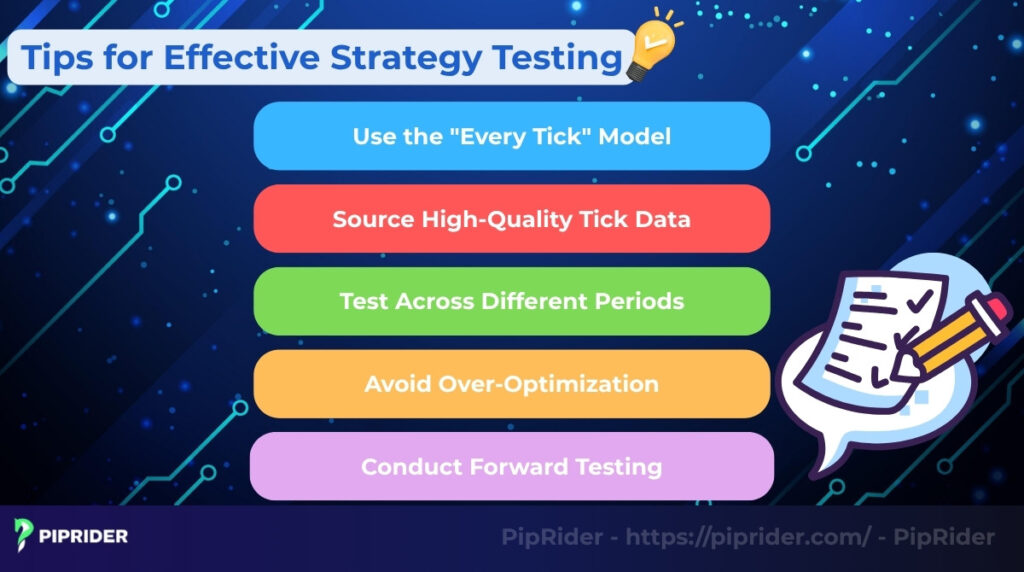
- Step 1: Formulate Your Hypothesis: Step 1: Formulate Your Hypothesis: Clearly define your entry and exit rules before opening the tester. If you are new to building these foundational rules, we highly recommend reading our comprehensive guide on how to backtest a trading strategy to master the core concepts first.
- Example: “Buying a 20/50 EMA crossover on the H4 chart produces a Profit Factor > 1.5 in trending environments.”
- Step 2: Define the Control Period: Select a specific historical window (e.g., Jan 2022 – Dec 2023). Ensure you have 99.9% modeling quality for this specific period to prevent “garbage in, garbage out” results.
- Step 3: Run the Baseline Test: Execute the first backtest using your Quick Start Settings (Section 3.3). This is your “Control Group.” Do not adjust any parameters yet.
- Step 4: Analyze Primary Metrics: Evaluate the Profit Factor, Maximum Drawdown, and Equity Curve. If the Profit Factor is < 1.0, your hypothesis is invalidated; stop here and rethink the core logic.
- Step 5: Isolate Variables (Optimization): If the baseline is promising, adjust only one variable at a time (e.g., only the Stop-Loss distance). Changing multiple inputs simultaneously makes it impossible to identify which factor caused the improvement.
- Step 6: Out-of-Sample Validation: This is the “Gold Standard” of testing. Take your optimized settings and run them on a fresh period of data that the EA has never seen (e.g., the year 2024). If performance holds up, the strategy is robust.
- Step 7: Forward Testing (The Final Lab): Move to a Demo or a small “Cent” account. This final stage validates the strategy against real-world factors like slippage, execution delays, and live spreads.
7. Limitations of the MT4 Strategy Tester (The Reality Check)
While the MT4 Strategy Tester is an excellent tool for baseline evaluation, treating its reports as a guaranteed projection of live performance is a dangerous trap. To protect your capital, you must understand the platform’s inherent limitations:
- Incomplete Historical Data: By default, MT4’s history center data can be patchy, containing gaps or lacking true tick-by-tick granularity. Testing on poor data yields completely fabricated results.
- Why Poor Data Quality Ruins Scalping Results: Scalping strategies target tiny price moves (5-10 pips). If your historical data is “low quality” (e.g., only containing M1 or H1 bar data without real ticks), the MT4 tester has to “guess” the price movement inside the bar. It might assume your Take Profit was hit before your Stop Loss, even if the opposite happened in reality. Without achieving 99.9% Modeling Quality, typically attained by importing institutional-grade data from sources like Dukascopy (a FINMA-regulated Swiss Forex Bank), a scalping backtest is often just a “profitable illusion” that will fail instantly on a live account.
- The Fixed Spread Trap: The standard tester uses a fixed spread, completely ignoring dynamic spread widening during news events or market rollovers. This can turn a historically “profitable” scalping EA into a live-market disaster.
- Unrealistic Execution and Slippage: The simulator assumes perfect, instantaneous order fills. In the live market, latency, server delays, and slippage (getting filled at a worse price) are daily realities that MT4 cannot natively replicate.
- Broker Feed Differences: The decentralized Forex market means the historical data feed from Broker A might have slightly different highs and lows compared to Broker B. A perfectly optimized strategy for one broker might trigger false signals on another.
- Great Backtests ≠ Live Performance: Backtesting optimizes for the past. It cannot predict shifts in global macroeconomic regimes, black swan events, or sudden volatility spikes. To put this risk into perspective, regulatory authorities like the European Securities and Markets Authority (ESMA) mandate disclaimers showing that between 74% and 89% of retail investor accounts typically lose money trading CFDs. A beautiful equity curve is merely a hypothesis; forward testing provides the actual proof to beat these odds.
8. Common Issues and Troubleshooting
Even experienced users encounter problems with the MT4 strategy tester. Here are fixes for the most common issues:
- EA doesn’t run or start: First, ensure the main “AutoTrading” button in the MT4 toolbar is enabled (green). Also, check the Journal tab in the Strategy Tester for error messages, which often indicate insufficient historical data for the selected period.
- “0 Trades Executed” error: This usually means either the Modeling quality was set incorrectly (e.g., “Open prices only” for an EA that trades intra-bar) or the EA’s entry conditions were simply never met during the test period. Double-check your EA’s input parameters and the selected model.
- Missing data or incorrect timeframe results: If the backtest shows strange results or the Journal tab reports “mismatched charts errors,” your historical data might be corrupt or incomplete. Go to MT4’s Tools > History Center (F2), find the relevant symbol and timeframe, and download or redownload the data.
- Backtest runs extremely slowly: The most common cause is having Visual Mode enabled. Untick this box for significantly faster testing. If it’s still too slow using the “Every tick” model, consider using “Control points” for initial testing, but remember it’s less accurate.
9. MT4 vs. MT5 Strategy Tester: When to Upgrade?
While this guide focuses on the testing environment, understanding the broader differences between MT4 and MT5 is crucial before making a platform switch. When it comes to the Strategy Tester specifically, positioning your choice depends on your strategy’s complexity:
- MT4 Strategy Tester: Ideal for traders focusing on single-symbol EA basics and classic technical strategies. It remains the gold standard for simplicity and reliability in the retail space.
- MT5 Strategy Tester: A significant upgrade for those requiring multicurrency testing or advanced multi-core optimization. According to the official MQL5 Strategy Testing documentation provided by MetaQuotes, MT5’s architecture natively supports testing a single EA across multiple symbols simultaneously and handles high-quality tick data much more efficiently.
If you find yourself limited by MT4’s single-symbol environment, it might be time to explore the advanced analytical power of MT5.
10. Frequently asked questions about MT4 Strategy Tester
12. Conclusion
The MT4 Strategy Tester is an indispensable mt4 tool for any serious Forex trader looking to evaluate and optimize their strategies before risking real capital. By mastering its setup options, correctly interpreting the performance reports, and learning to troubleshoot common issues, traders can conduct far more accurate backtests using the Strategy Tester. This leads to better strategy refinement, increased confidence, and ultimately, reduced risk in live trading.
To discover more essential trading tools & platforms and enhance your trading edge, be sure to follow Piprider.
Infographic Section
-
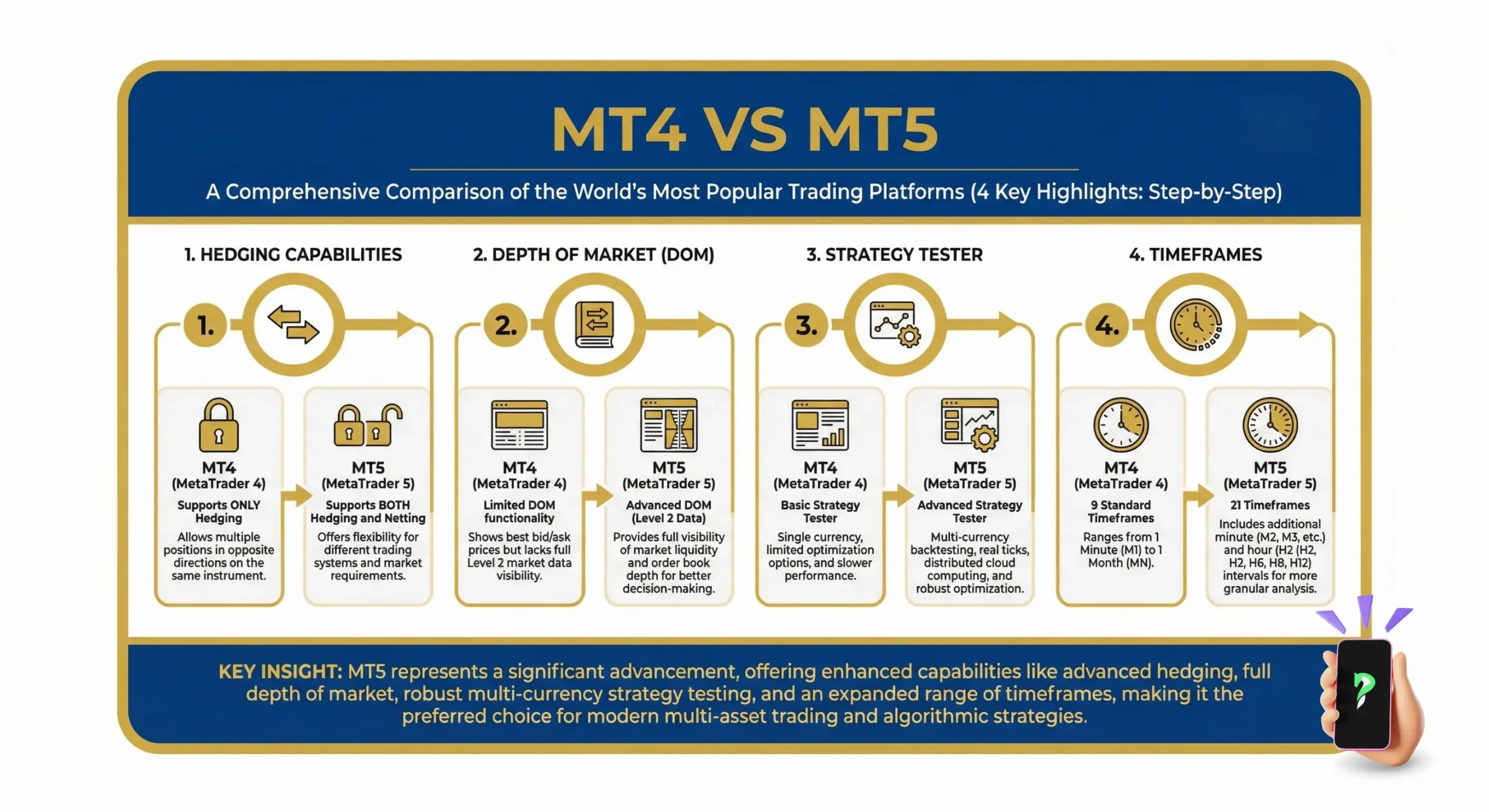
MT4 vs MT5 -
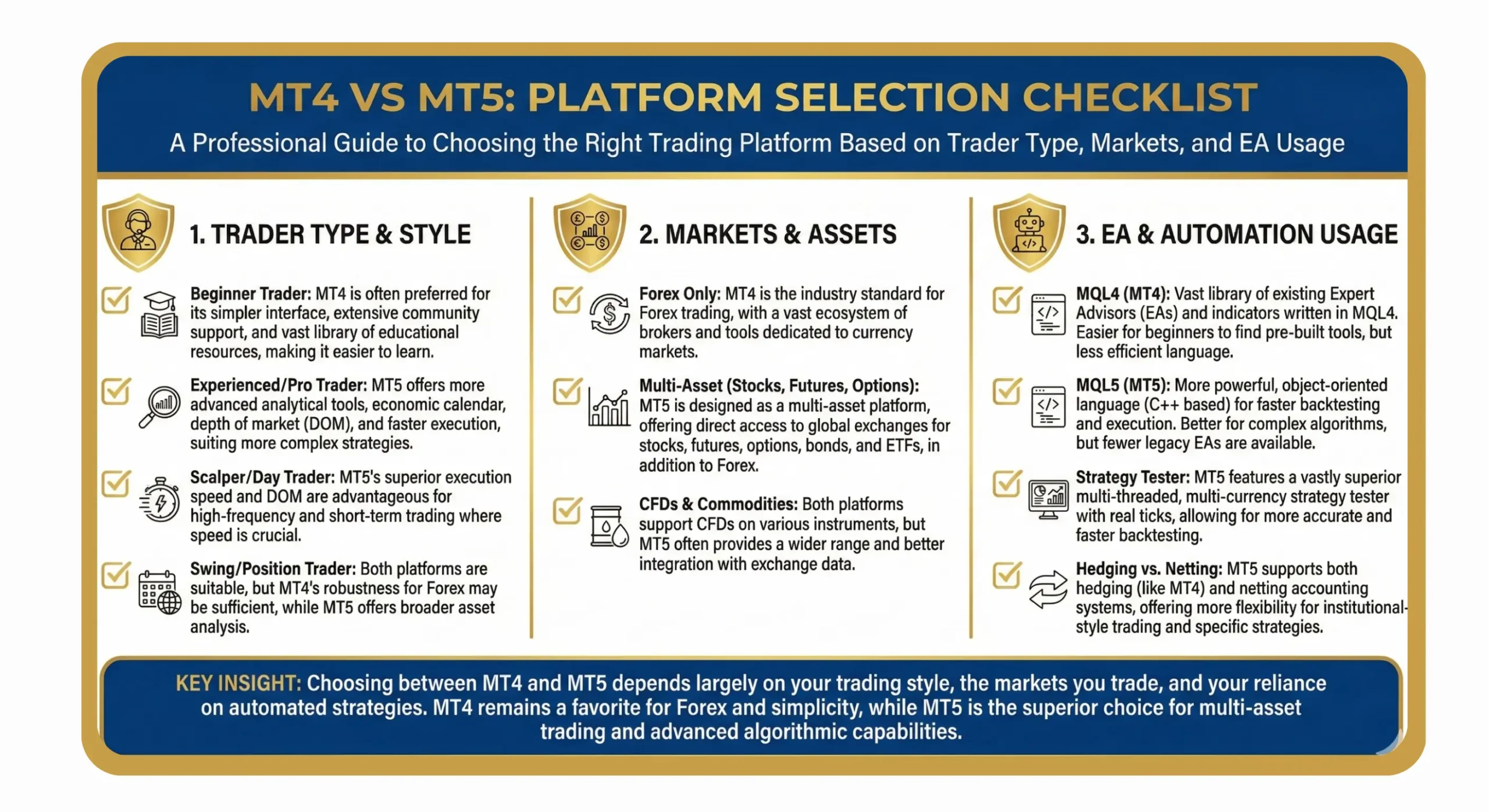
platform selection checklist -

MT4 strategy tester workflow